

When we talk about order delivery and possible difficulties in delivering the entire quantity of ordered items, OMNI also enables partial delivery. The simple process of partial shipment is demonstrated in this video
For any ambiguities or additional questions, please, contact us directly.
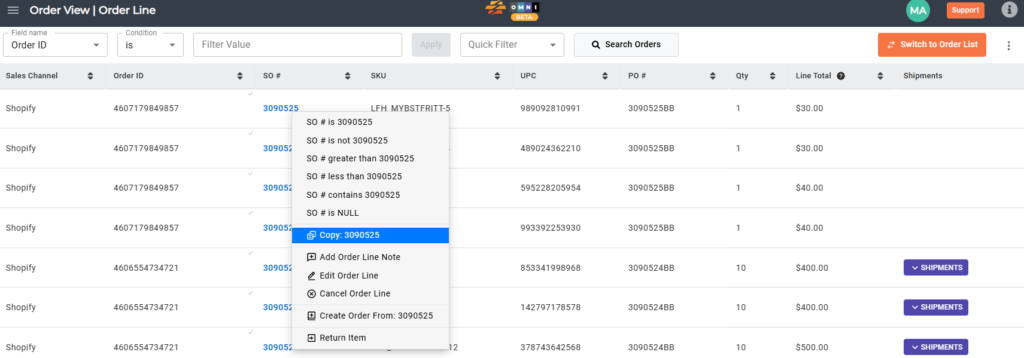
A) Enter to Order View
- Go to the main menu
- Select “Order View”
- Place the arrow of the computer mouse above the order number in the “SO#” column
- Press the right mouse button
- In the popup menu quick menu select “Copy SO#”
B) Shipping submenu
- Go to the main menu
- Select “Order Management”
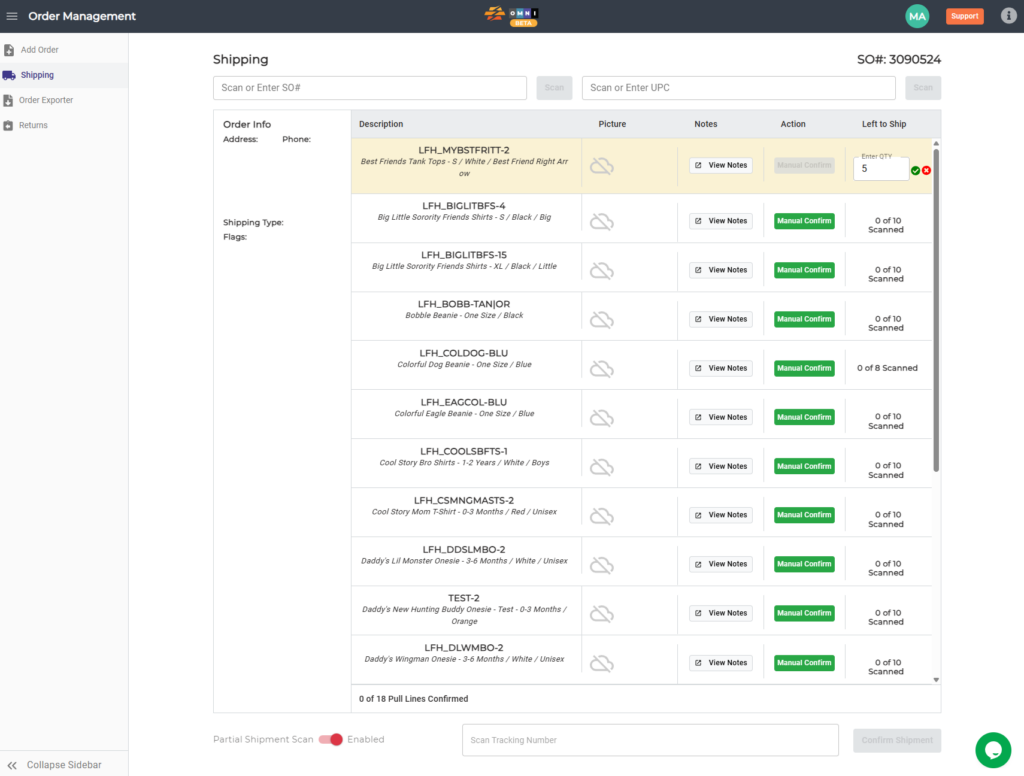
- Select “Shipping” from the submenu
- Paste SO# in the shipping field
- Confirm by pressing the “Scan” command button

C) Fulfilling shippment
- Scan or write UPC in the scan field, or press the “Manual Confirm” command button to open a field for direct manual input of product quantities
- After completing the entry of available quantities for shipment, turn on the “Partial Shipment Scan” switch by switching to the right
D) End of partialy shippment
- Enter the “Scan tracking number “into the tracking number field.
- Confirm shipment by clicking “Confirm Shipment.”
