

OMNI is an app that provides tools for adding products in the warehouse database, using CSV templates.
For any ambiguities or additional questions, please, contact us directly.
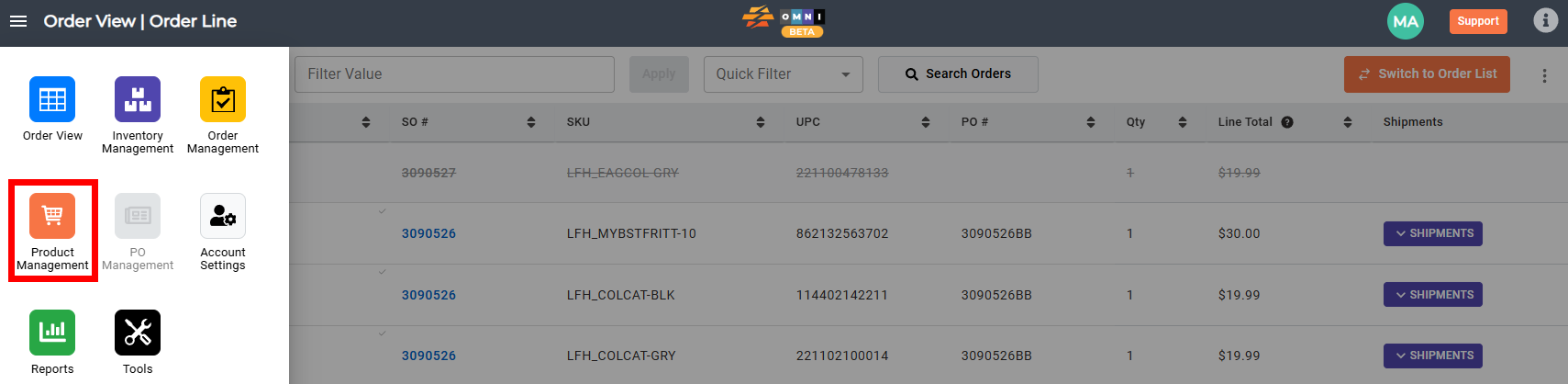
A) Enter Product Management
- Go to the main menu
- Select “Product Management”
B) Steps for adding products
- Select the “Product Creator” from the submenu
- Download the template for editing products by pressing the “Template” command button, and from the dropdown menu select “Add Products”

- Open the file in Excel or Libre Office
- Make the desired changes
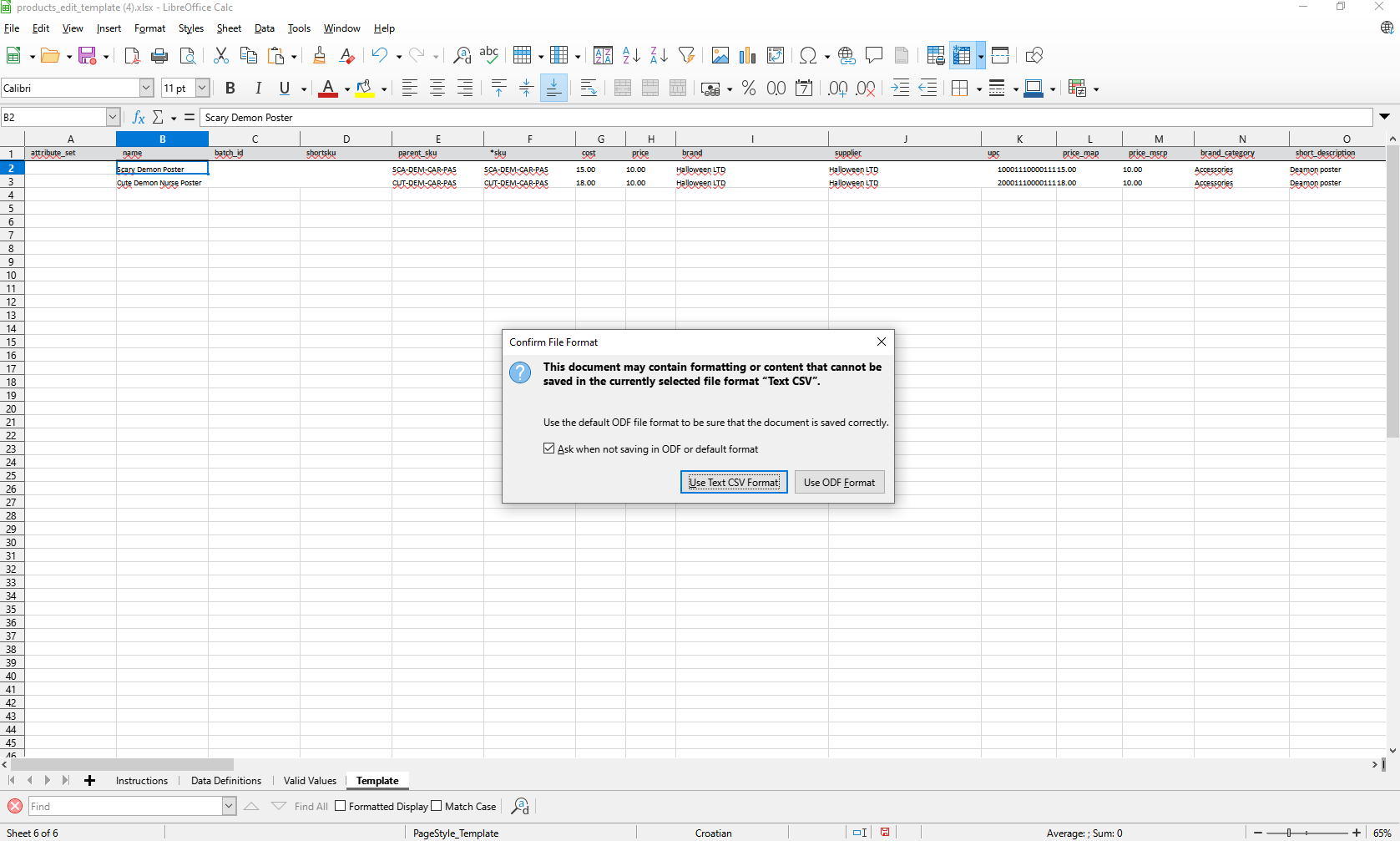
- Save changes in *.csv file format
- Back to the “Product Manager”
- Select upload type
- Press “Choose file” to open browser windows and pick the file
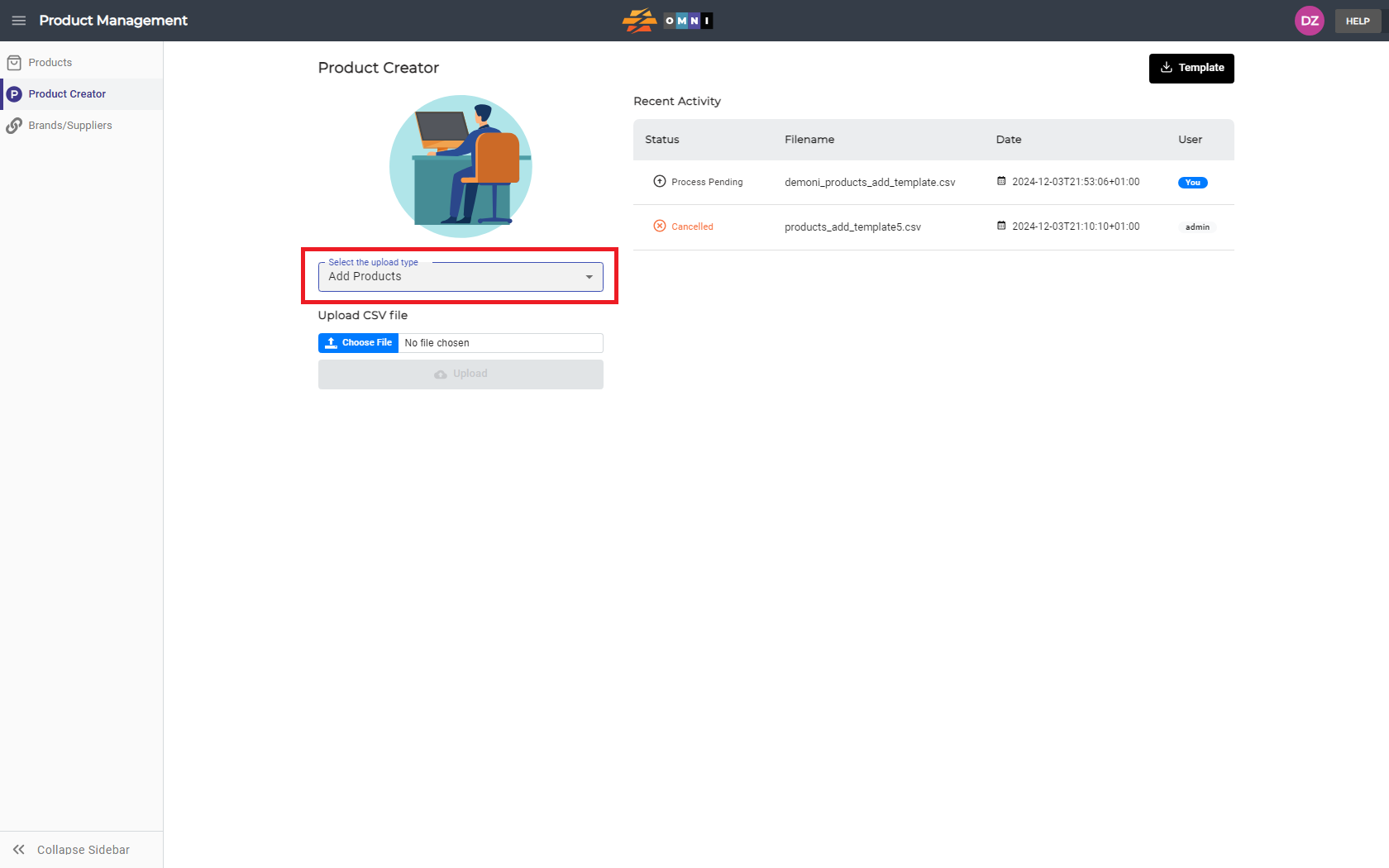
- If the file is valid you get a message about it
- Press the “Upload” command button and upload the file
