This guide provides technical instructions for using the Bulk Mark Ship tool within CommerceBlitz OMNI to process multiple shipments simultaneously. It details how to access the tool, download the required CSV template, and properly upload the completed file to update shipment statuses in bulk.
How to Bulk Mark Ship:
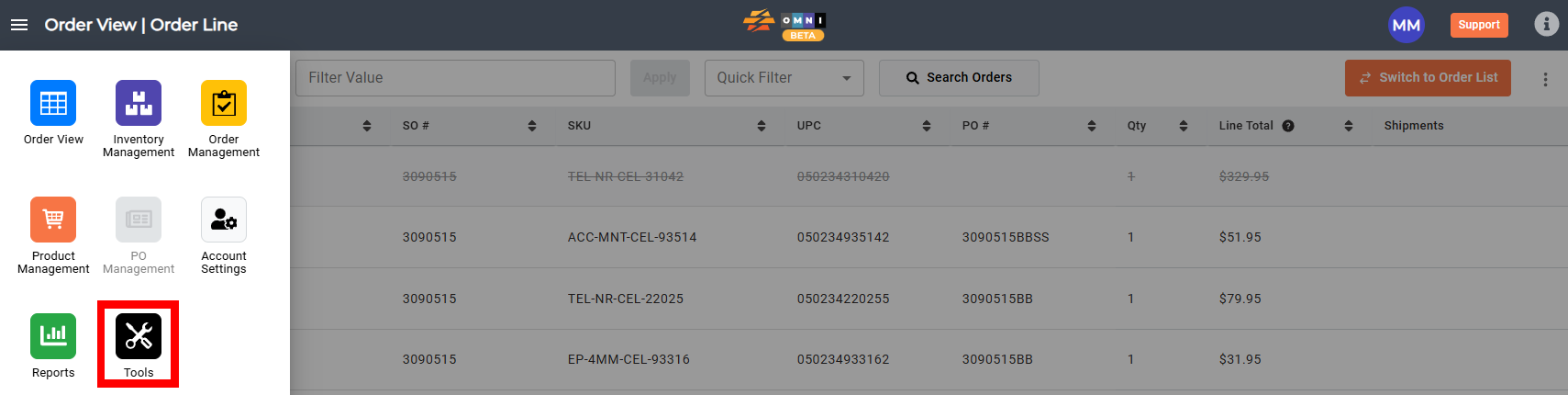
- Go to the main menu
- Select ‘Tools‘
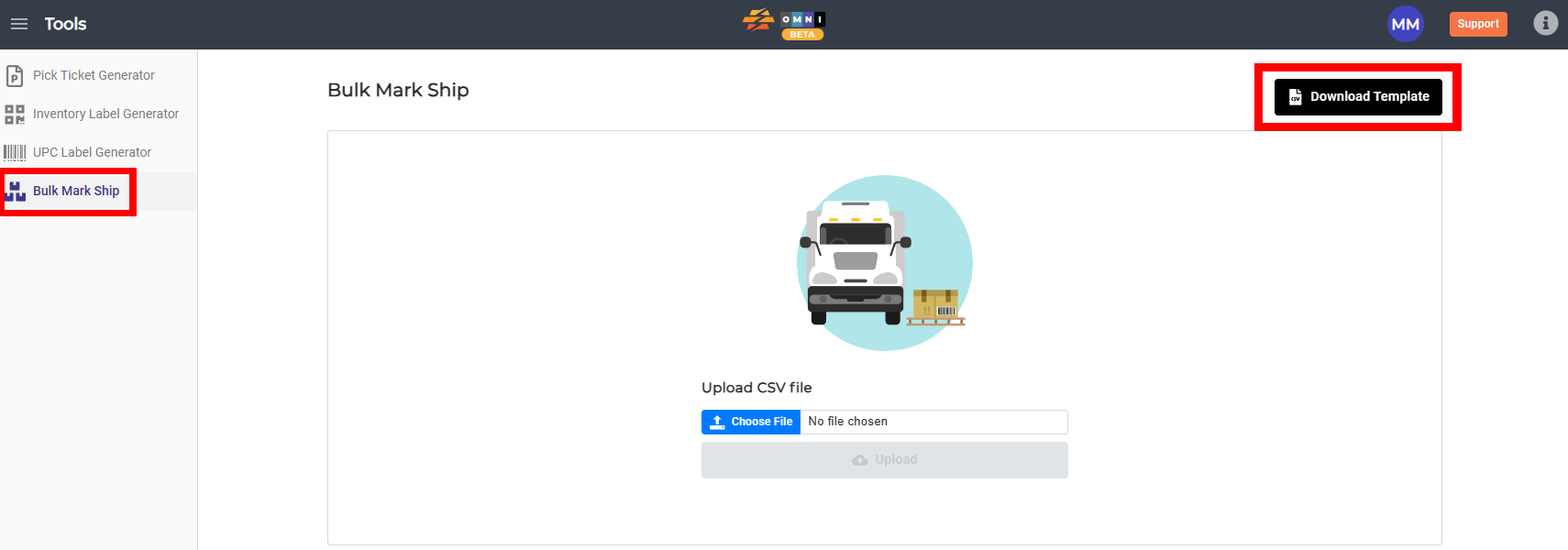
- Select the ‘Bulk Mark Ship‘ from the sub menu.
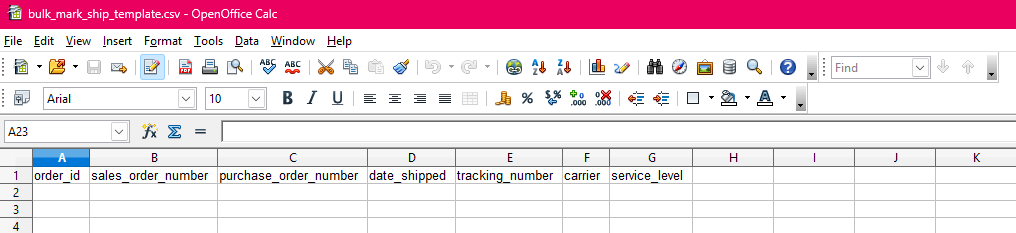
- Download the CSV template for editing by selecting the ‘Download Template‘ button.
- Open the CSV file, fill in the necessary data, and save the changes.
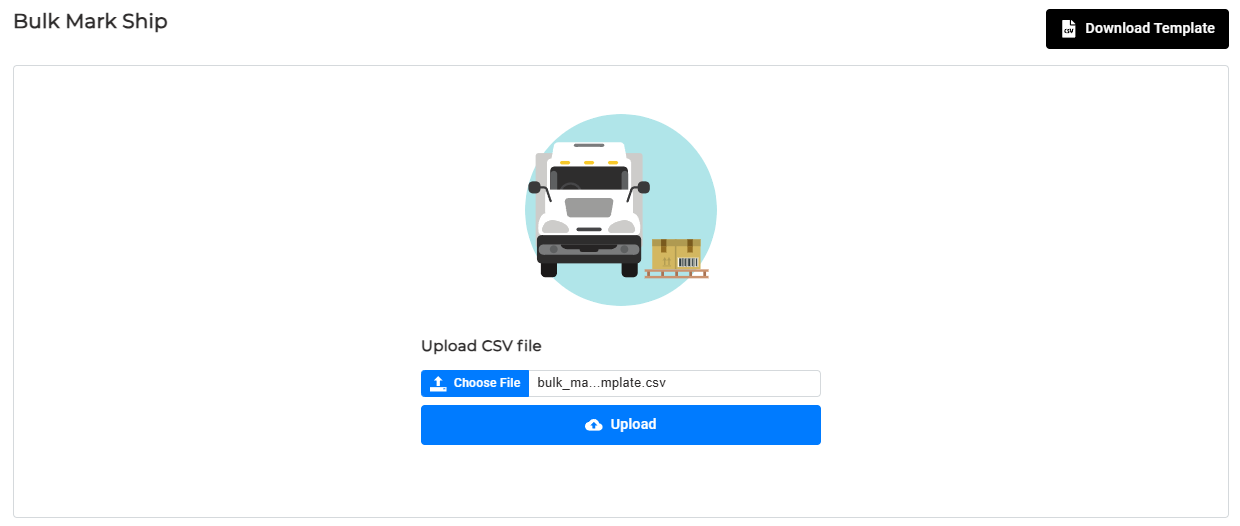
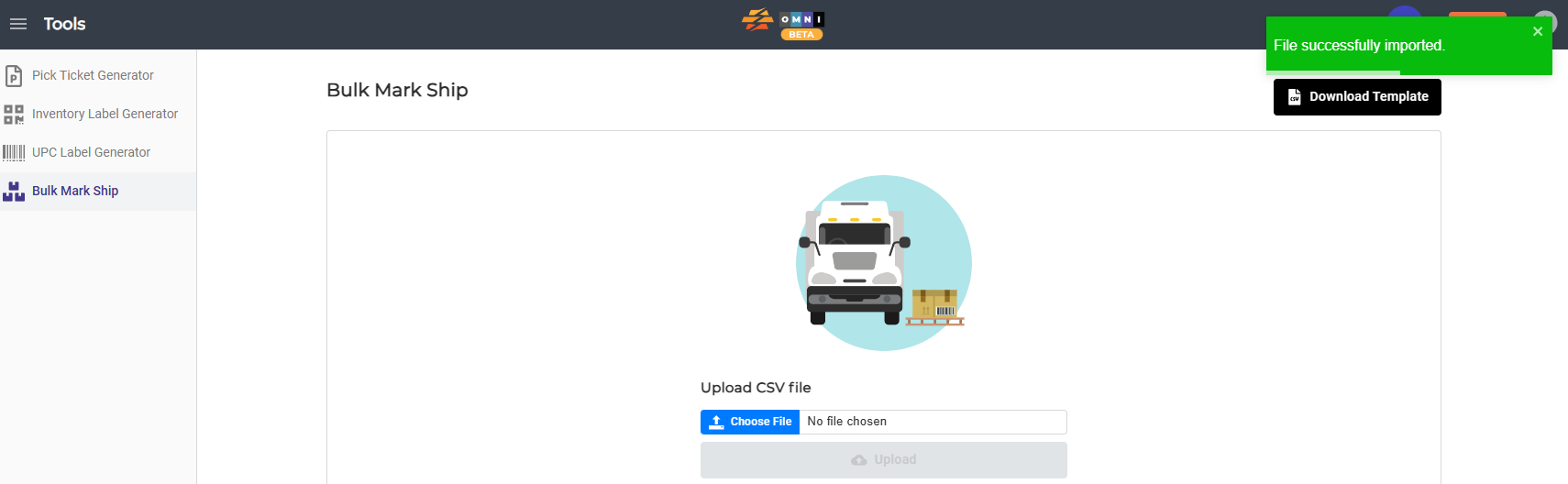
- Use the ‘Choose File’ option to upload the CSV file back to CommerceBlitz OMNI, select ‘Upload’.