The simple process of making new orders from an old one in OMNI is demonstrated in this video.
For any ambiguities or additional questions, please, contact us directly.
A) Enter to Order View
- Go to the main menu
- Select “Order View”
- Place the arrow of the computer mouse above any order ID or SO# you wish
- Press the right mouse button
- In the popup quick menu select “Create order from”

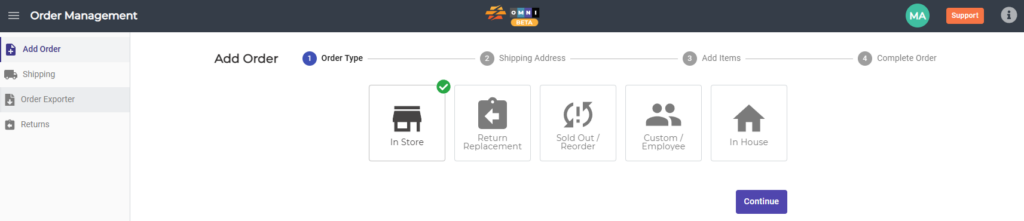
B) Select the order type
- Select the “Add Order” submenu
- Choose the type of order
- Press the “Continue” command button
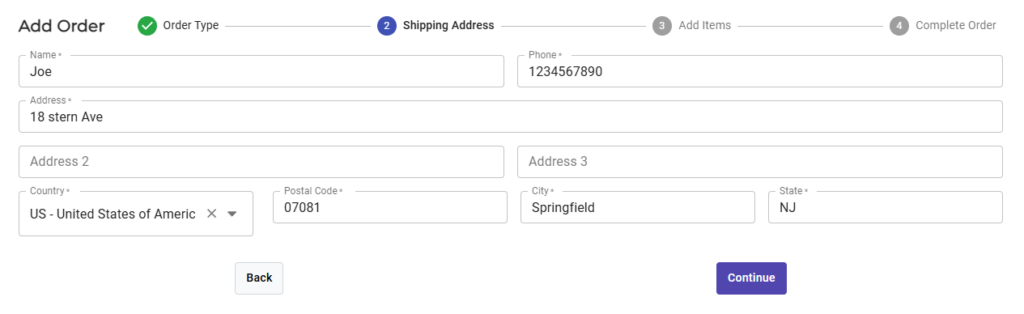
C) Fulfilling order
- Fulfill all fields with “*” in the form
- Press the “Continue” command button
D) Add product in order
- Enter UPC or SKU in the field and confirm by pressing “Scan” or “Enter” on the keyboard
- Continue scanning UPC or SKU until finished
- Edit discount and sale tax
- Press the “Continue” command button

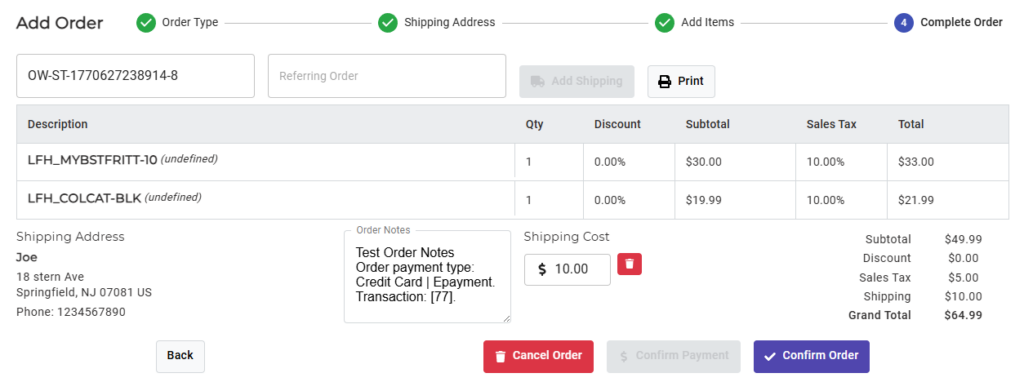
E) Payment
- Recheck the order. If something is wrong, return to the previous window by pressing the “Back” command button or continue to pay the order by pressing the “Confirm Payment” command button
- Select the payment type from the dropdown menu in a popup window.
- Confirm by pressing the “Confirm” command button in the popup window
- Confirm the order by pressing the “Confirm Order” command button

- Select the payment type from the dropdown menu in a popup window

- Confirm by pressing the “Confirm” command button in the popup window
- Confirm the order by pressing the “Confirm Order” command button