


This video and step-by-step manual demonstrate the simple process of adding notes in one order.
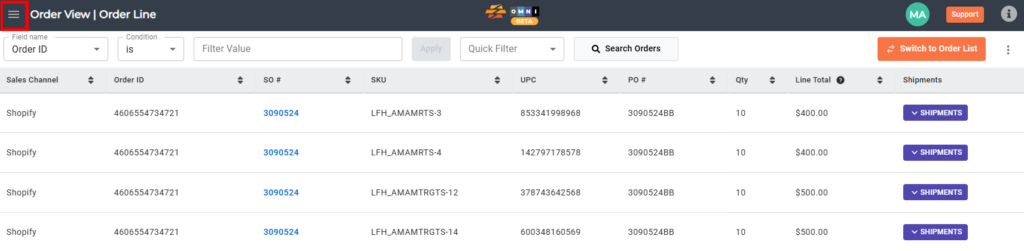
A) Main menu
- Go to the main menu.
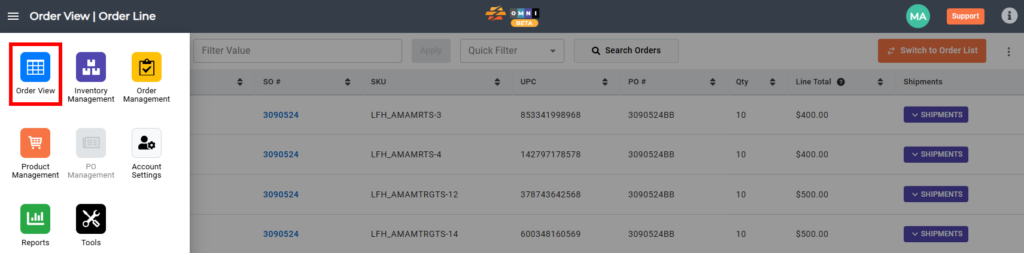
B) Order view menu selecting
- Select “Order View”
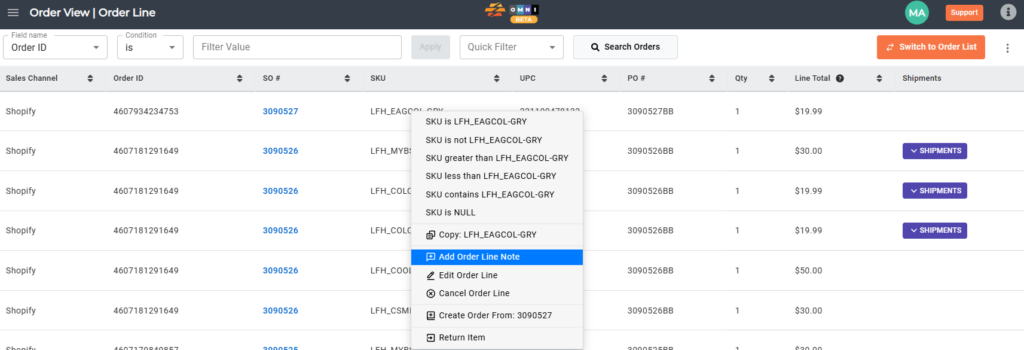
C) Select order line
- Place the mouse over the order line you want to add a note, it doesn’t matter in which column, and click the right mouse button
- From the quick menu select “Add Order Line Note”
D) Writing Order Line Note
- Write a note in the popup note field

D) Saving notes
- Confirm and save notes by clicking on the “Save” button