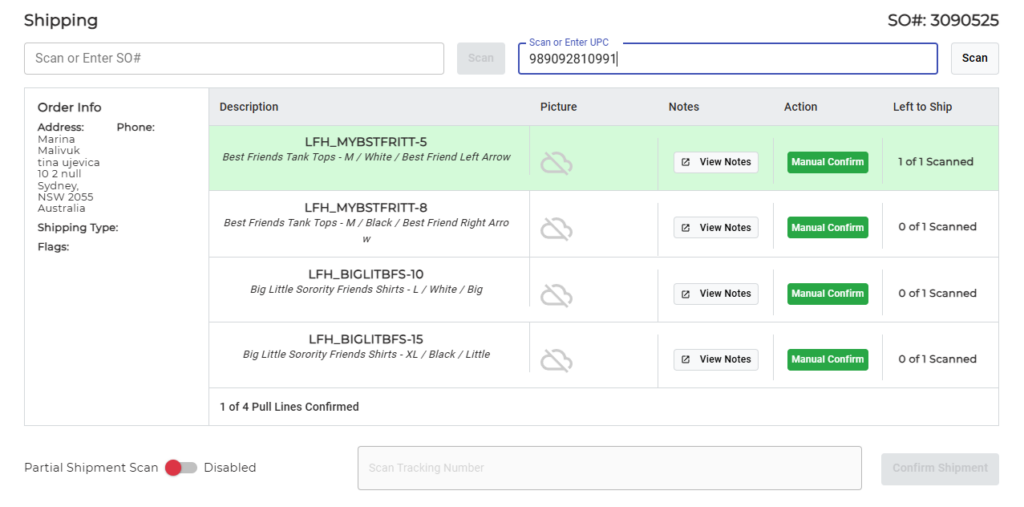
The simple process of ending a partially shipped order is demonstrated in this video.
For any ambiguities or additional questions, please, contact us directly.
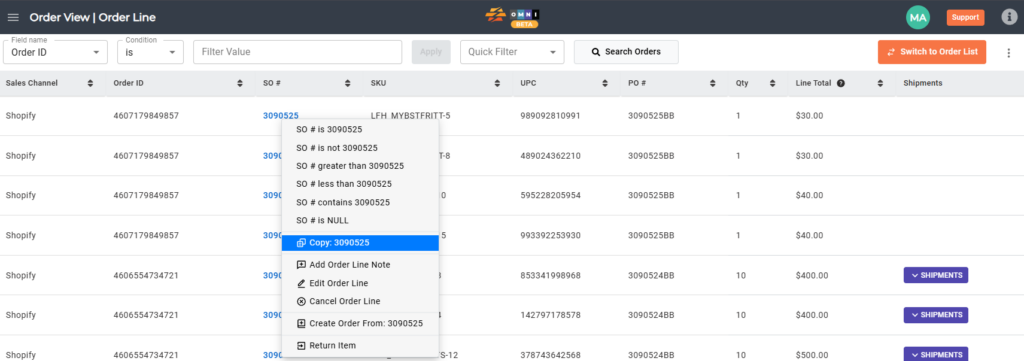
A) Enter to Order View
- Go to the main menu
- Select “Order View”
- Place the arrow of the computer mouse above the SO# unfinished order.
- Press the right mouse button
- In the popup menu quick menu select “Copy SO#”
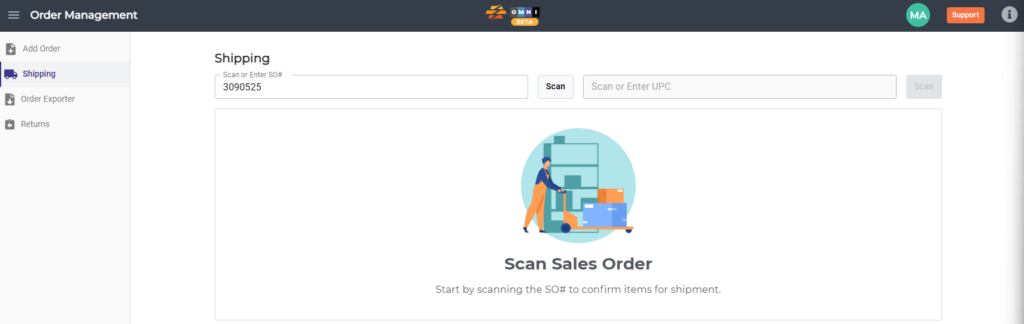
B) Shipping submenu
- Go to the main menu
- Select “Order Management”
- Select “Shipping” from the submenu
- In the “Scan or Enter UPC” field paste the SO# of the unfinished order
- Confirm by pressing the “Scan” command button
C) Fulfilling shippment
- Scan or write UPC in the scan field, or press the “Manual Confirm” command button to open a field for direct manual input of product quantities
- Enter product quantities and finish shipping