


This video and step-by-step manual demonstrate the simple process of canceling an order line in the OMNI apps.
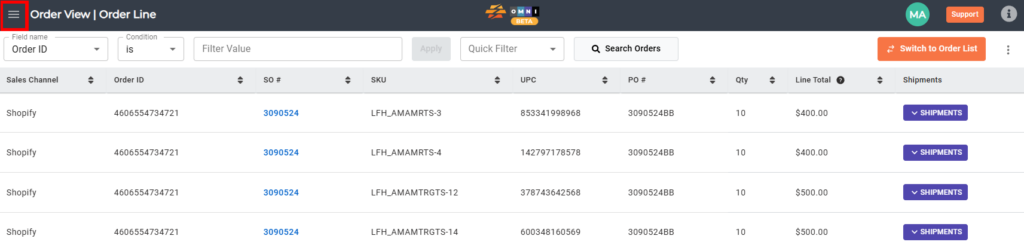
A) Main menu
- Go to the main menu.
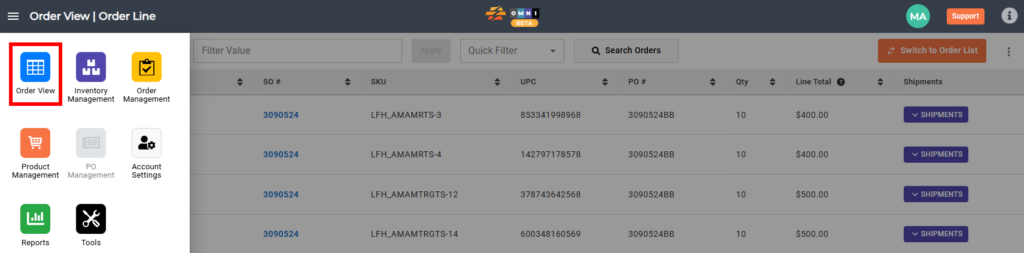
B) Order view
- Select “Order View”
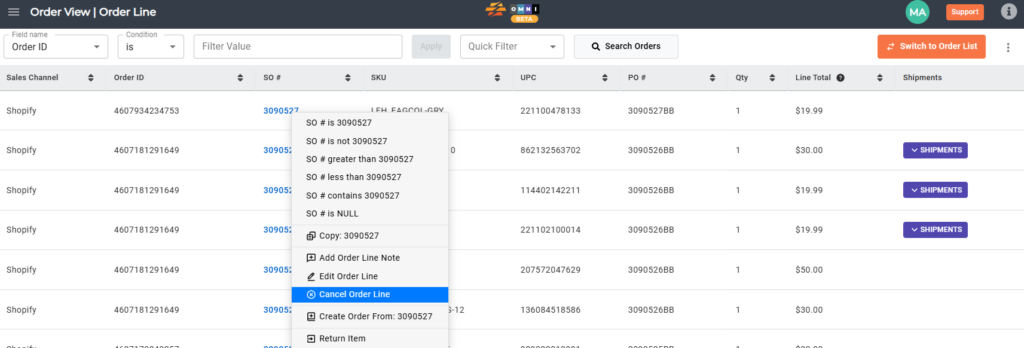
C) Select the order line for canceling
- Place the mouse over the order line you want to cancel, it doesn’t matter in which column, and click the right mouse button
- From the quick menu select “Cancel order line”
D) “Cancel Order Line”
- In the popup window press the “Max Qty” command button
- Confirm by pressing the “Save” command button

D) Look at the canceled line after canceling
- All the text in the canceled row will be gray and crossed out with a line, and the notification canceled will appear in the “Status” column
