


Here, we provide a step-by-step guide on how to add and manage users within the CommerceBlitz OMNI platform. It covers the administrative process of creating new user profiles, assigning specific roles and permissions, and configuring account settings to ensure your team has the appropriate level of access to warehouse and order management features.
Adding new users in OMNI is a simple process. This video provides step by step instructions on how to do just that:
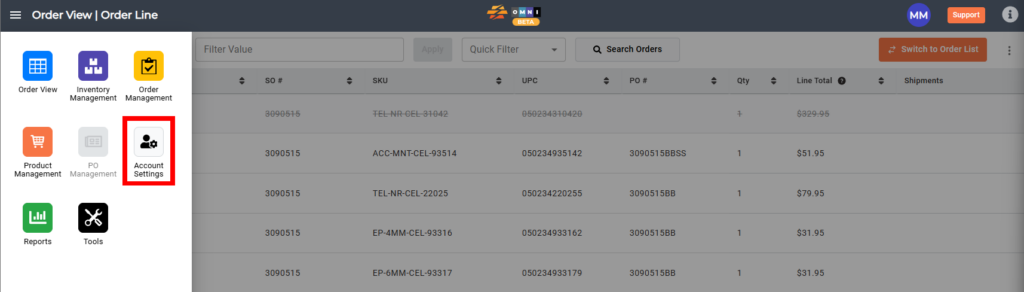
Accessing Account Settings:
- Go to ‘main menu‘
- Select ‘Account Settings‘
Adding a new user in CommerceBlitz OMNI:
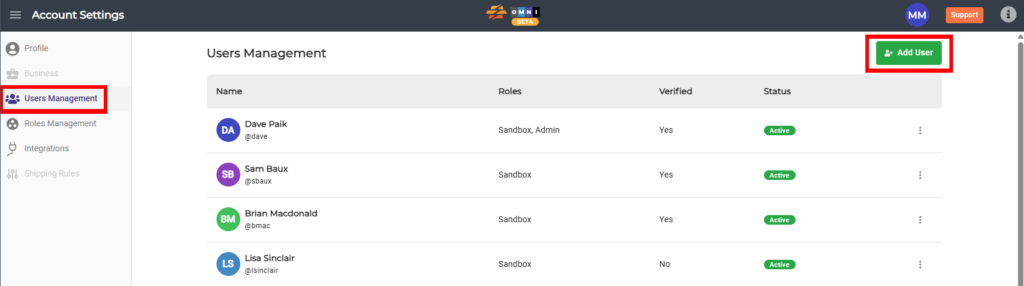
- Select ‘Users Management‘ in the submenu on the left
- Select’Account Settings‘
- Input the necessary information about the user, and select a role to be assigned to them.
- Save the user by clicking the ‘Add User‘ button.
How to Delete a User in CommerceBlitz OMNI:
To delete a user, select the three vertical dots on the right and select ‘Delete‘.
