


Here, we provide a step-by-step process of integrating your Shopify store with the CommerceBlitz OMNI platform. we’ve designed this resource to help you navigate the installation seamlessly, from accessing your account settings to authorizing the OMNI app within the Shopify App Store. With these steps, you’ll be able to successfully sync your store and confirm a ‘Connected’ status to start managing your orders and inventory with ease.
Connect Your Shopify Store to OMNI
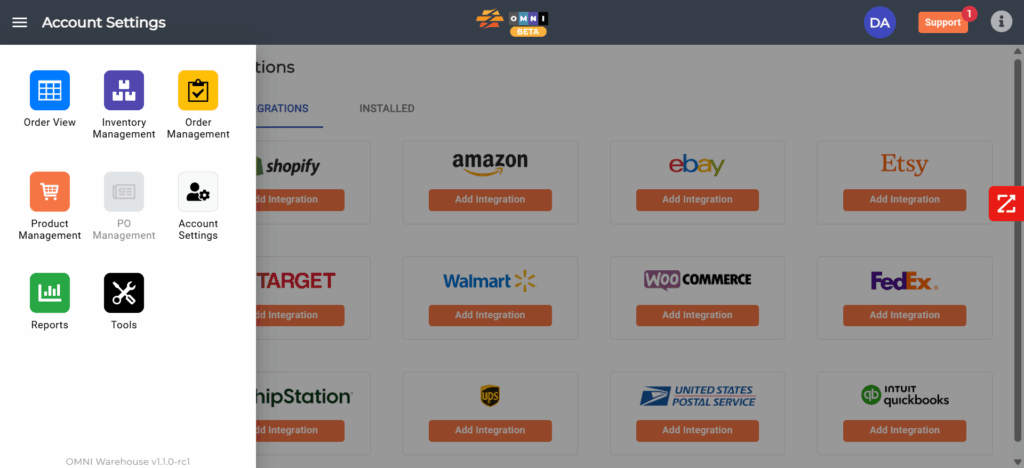
- From your OMNI dashboard, navigate to Account Settings.
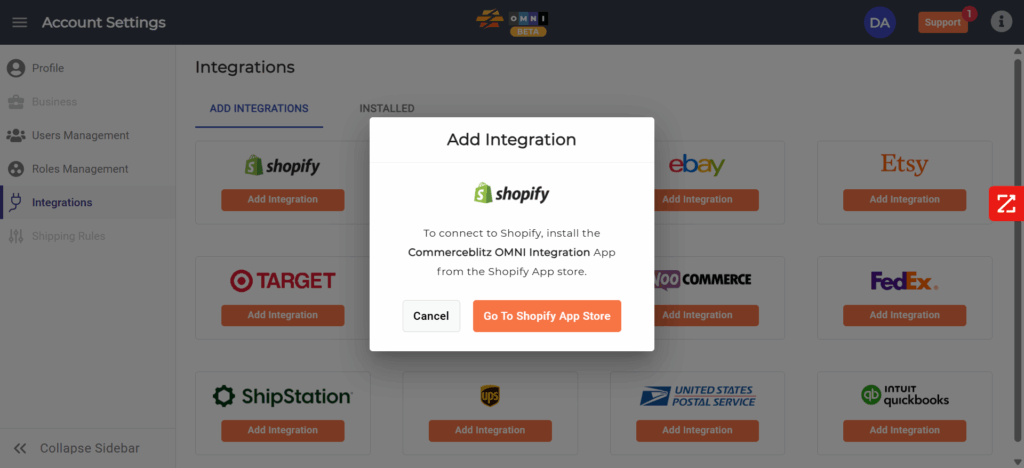
- In the left-hand menu, click on Integrations.
- Locate the Shopify logo and click the ‘Add Integration’ button.
- A pop-up window will appear. Click the orange ‘Go To Shopify App Store’ button.
- Log in to your Shopify account and select the store you wish to connect.
- Follow the prompts within Shopify to install the CommerceBlitz OMNI app.
- Once installed, Shopify will redirect you back to OMNI. Under the ‘INSTALLED’ tab in Integrations, your store should now show a green ‘CONNECTED’ status.
Syncing Your Products (Required)
Simply connecting the app does not automatically import your catalog. Once the connection is established, you must manually trigger the handshake to bring your Shopify products into the OMNI environment.

- Navigate to the ‘INSTALLED’ Tab: In the Integrations section, click on the ‘INSTALLED’ tab (as shown in the image below) to view your active connections.
- Locate Your Store: Find your connected Shopify store in the list. Its status should show a green ‘CONNECTED’ badge.
- Sync Products: Look for the ‘Sync Products’ button associated with your Shopify integration.
- Hit the Button: Click this to begin pulling your existing Shopify product data, including titles, descriptions, and SKUs, into OMNI.
- Wait for Completion: Do not attempt to manage or edit these items until the sync is finished.

Inventory & Brand Rules
By default, CommerceBlitz OMNI does not push inventory levels to Shopify immediately upon connection. This prevents unconfigured stock data from overwriting your live store. Setting brand rules and inventory must always come first.
- Define Brand Rules: Before pushing stock, you must set your brand-specific logic (e.g., safety buffers or warehouse priorities) to determine how inventory is allocated.
- Establish Inventory: Ensure your OMNI inventory levels are accurate within the platform before enabling any external sync.
- Enable Inventory Push: Once your rules are active and your products are synced, you can then enable the automated inventory push to your Shopify store.