This video will teach you how to create periodic sales reports. All data can be displayed visually and filtered according to your needs. The video demonstrates this simple process.
For any ambiguities or additional questions, please, contact us directly.
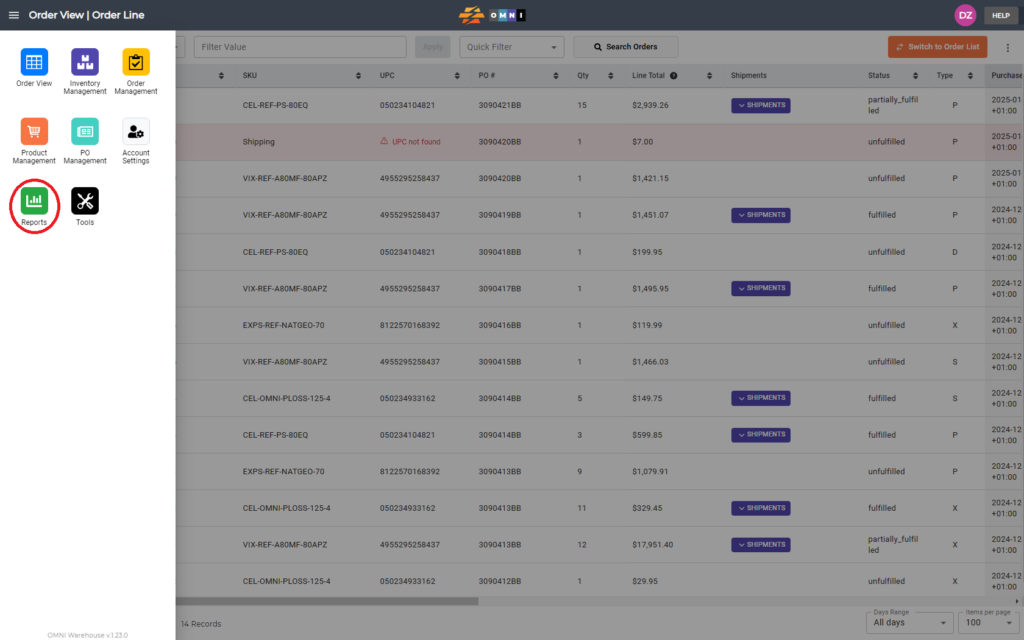
A) Enter to Reports
- Go to the main menu
- Select “Reports”
B) Steps to make a sales report
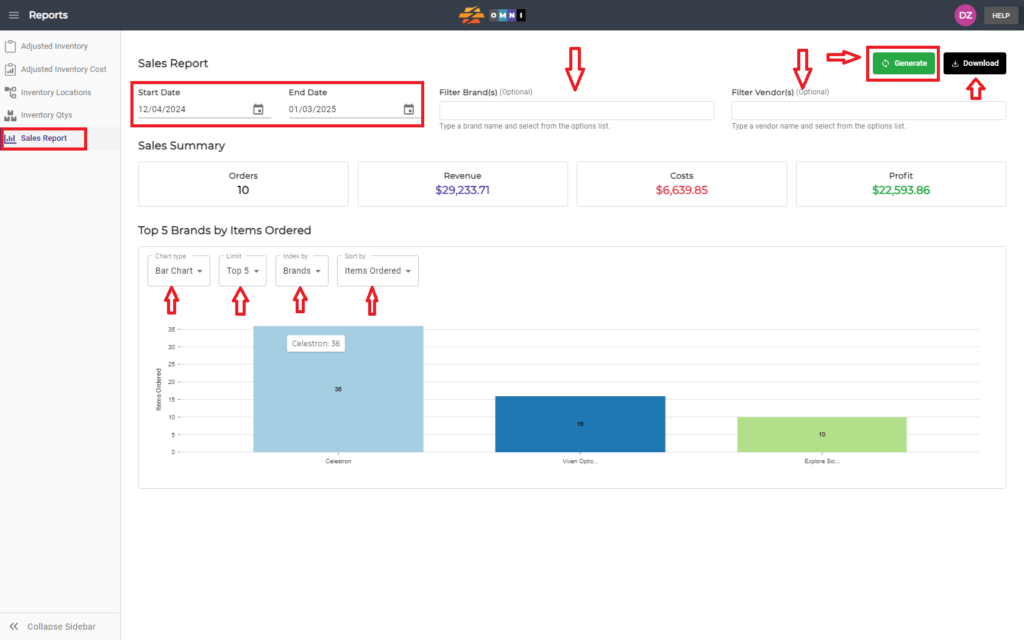
- Select the “Sales Report” in the submenu
- Set “Start date” and “End date”
- If you want to enter a specific brand or manufacturer in the additional filter fields or leave it blank
- Click the “Generate” green command button to generate the report
- The data is also available in visually transparent charts, the appearance of which can be changed so that the data is displayed in a pie, line, or bar.
- The data display can also be limited, according to index and revenue.
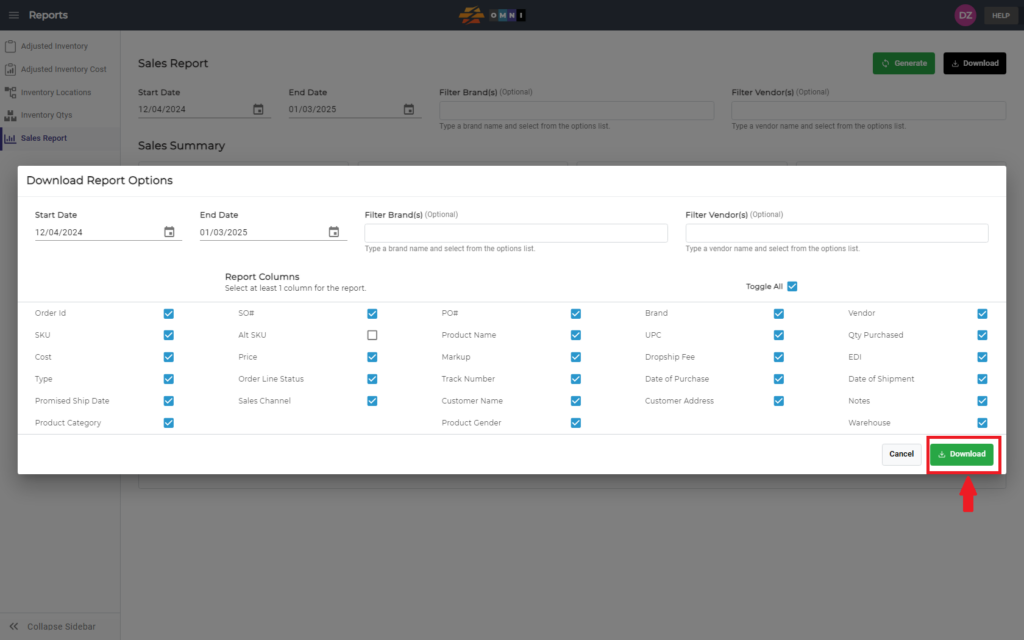
- Click the “Download” command button to download the report in *.csv file format
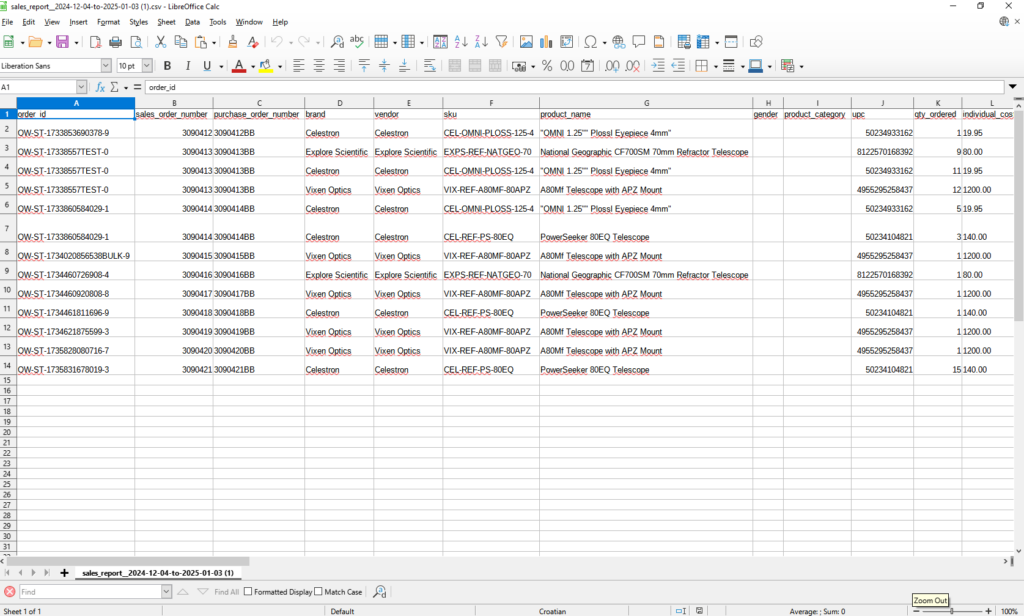
- Downloaded sales report in *.csv file open in Excel or Libre Office