CommerceBlitz logo icon
Table Of Contents

Add a header to begin generating the table of contents

All Knowledge Base Topics

Reports – ATS Inventory Download

The ATS (Available-to-Sell) Inventory Report allows you to quickly see exactly how much stock you have in your warehouse at any given moment. This guide will show you how to access the ‘Reports’ section in CommerceBlitz OMNI, download your current inventory data as a CSV file, and view essential details like product quantities and warehouse locations.

Access Reports:

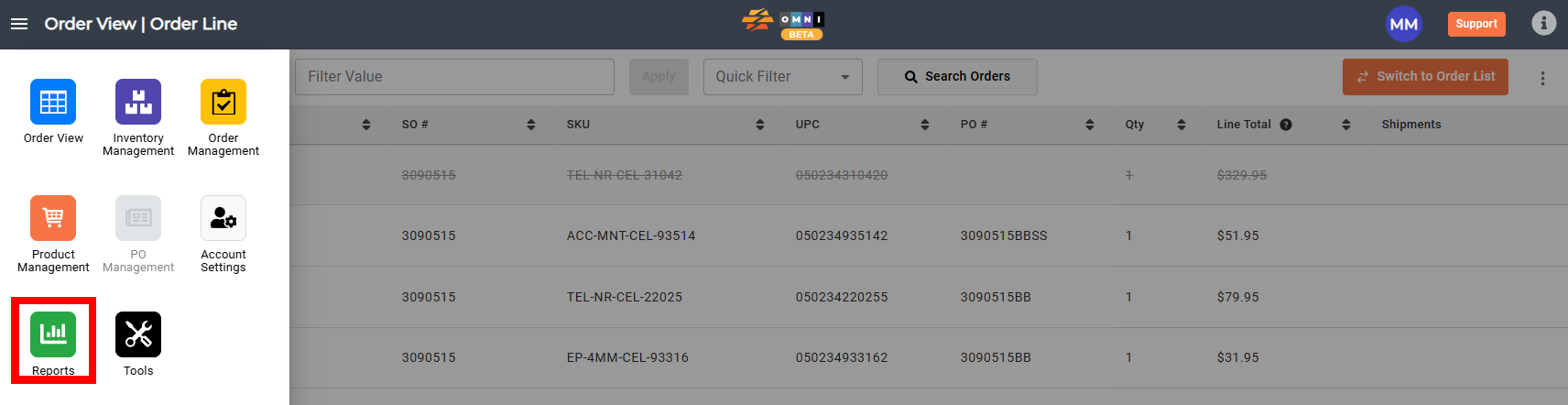
  • Go to the main menu
  • Select ‘Reports’
CommerceBlitz OMNI Order View screen showing the main menu with the Reports icon highlighted, indicating where to access reports from the dashboard.
  • Select ‘ATS Report‘ in the sub menu
  • At the top right, select the three vertical dots, and open the pop-up menu

CommerceBlitz OMNI ATS Report page showing the product list table with the three-dot menu highlighted to open additional actions.
  • Select ‘Download’ from the menu to begin downloading the CSV file.

CommerceBlitz OMNI ATS Report page showing the three-dot menu opened with the Download option highlighted for exporting the report.
  • View your CSV in your preferred spreadsheet software.
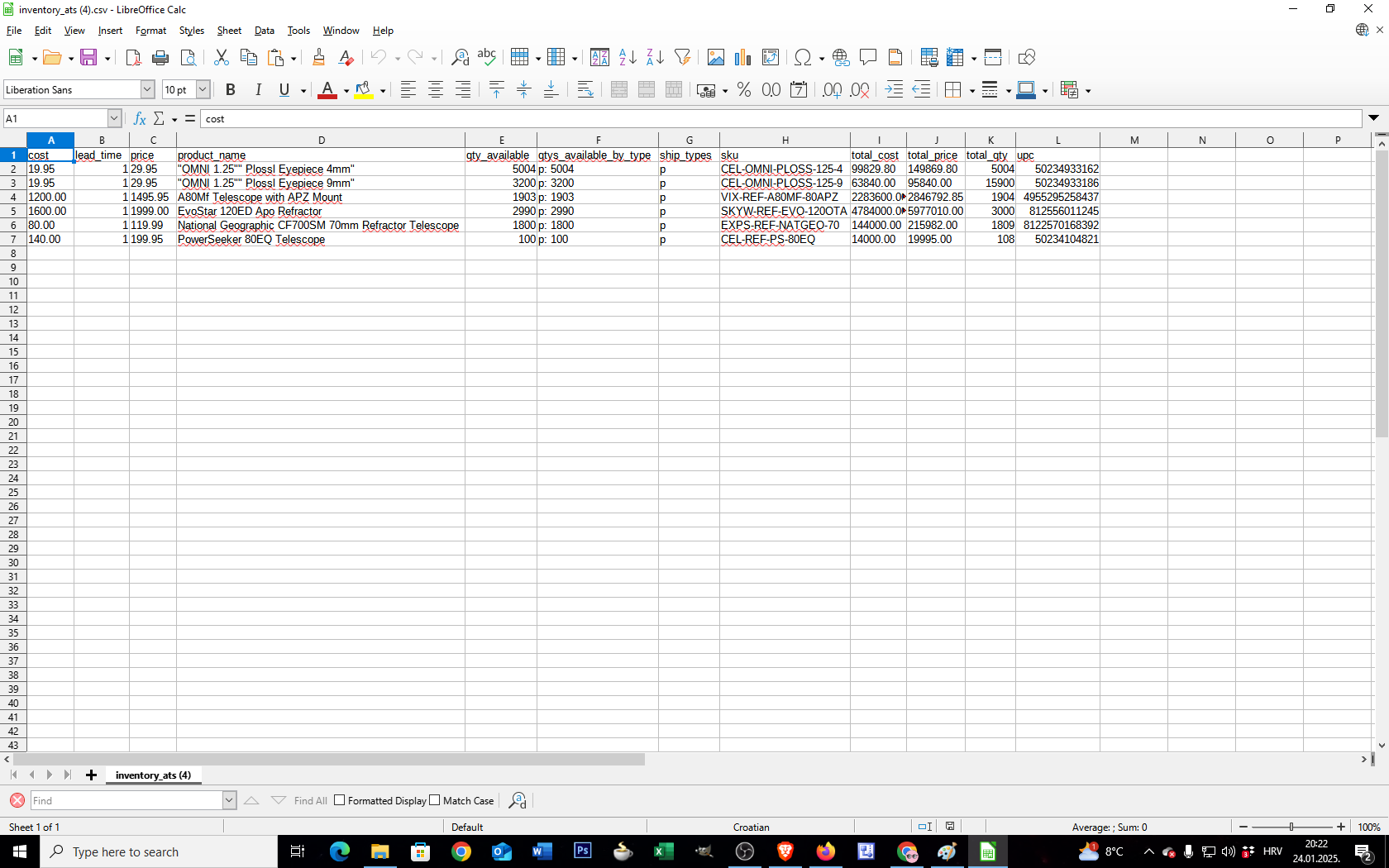
Inventory CSV file opened in LibreOffice Calc showing product data columns such as product name, SKU, available quantity, ship type, total cost, and UPC for reviewing zone-related information.